Turn a Folder of Markdown into a Website with seemore
Turn a folder of Markdown into a website with the desktop app or one command, then edit pages in the preview and put the site online.
You can turn a folder of Markdown into a website in two ways: with the desktop app or with one command.
Both ways use seemore, an open-source project that I built. It uses the MIT license.
Markdown is plain text with simple marks for headings and lists. AI tools write it fast: specs, notes, guides, READMEs and whole folders. A person cannot read that much raw text at that speed. seemore shows the folder as a site with navigation and search instead.
Turn a folder of Markdown into a website in two ways
You need no config file and no code. seemore does not move your files. If you stop using it, your files stay where they are.
Use the desktop app
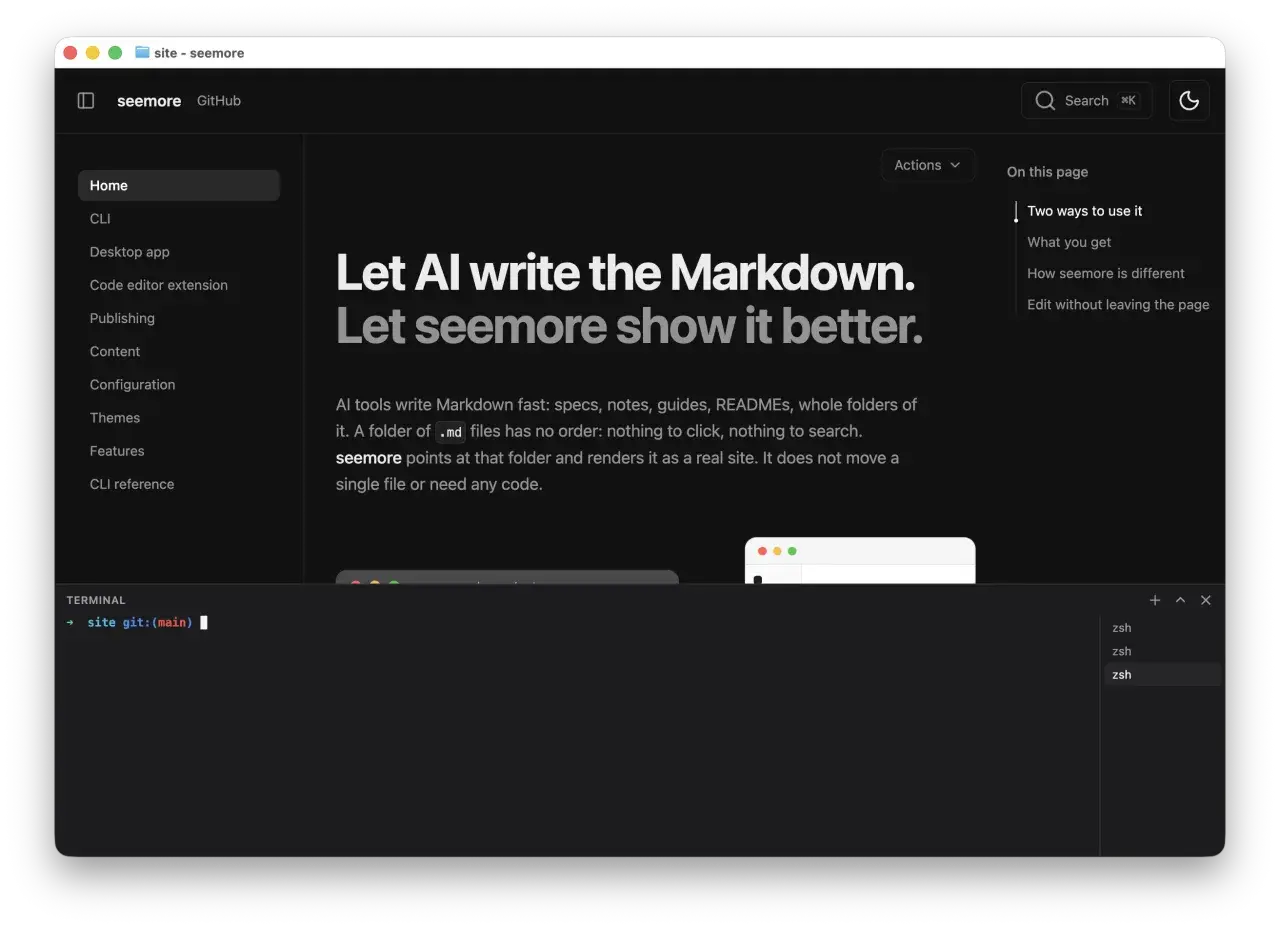
The desktop app opens a folder or a .md file as a site in its own window. It runs on macOS, Windows and Linux.
- Download the app from the download page.
- Open the app.
- Choose File > Open Folder, or drag your folder onto the app.
To open one file, double-click a .md file or choose File > Open File. The app also has an integrated terminal. A terminal is a text window where you type commands. It opens in the site's folder.
Use the command line
The command line needs Node.js 20 or newer.
- Open a terminal.
- Go into your folder.
cd my-docs- Start seemore.
npx seemore- Open
http://localhost:4040in your browser. The word localhost means your own computer.
The site is the same either way.
Let your AI coding agent set it up
A skill is a set of instructions that an AI coding agent loads. With the seemore skill, you describe what you want and the agent runs the commands.
In Claude Code, install the skill as a plugin.
- Add the marketplace.
/plugin marketplace add arifszn/seemore-skill- Install the plugin.
/plugin install seemore- Restart or reload the agent.
- Ask "what skills do you have?" and find
seemorein the answer.
Then ask in plain words:
Turn this folder of notes into a docs site I can read in my browserYou can also call the skill by name with /seemore. In Claude Code, the full name is /seemore:seemore.
The skill works in any agent that supports the SKILL.md format. The install guide lists Claude Code, OpenCode, Codex, Antigravity, Gemini CLI, Cursor, Windsurf, Kimi and others. For an agent other than Claude Code, you can paste this line into the agent:
Fetch and follow the install instructions from https://raw.githubusercontent.com/arifszn/seemore-skill/refs/heads/main/INSTALL.mdWhat the site includes
- Search. It is full-text search with no server and no account. The results are shareable and highlighted.
- Page order. seemore checks a
meta.jsonfile first, then anorderfield in the frontmatter, then the title. Frontmatter is the block of settings at the top of a page. - Rich Markdown. It supports GitHub Flavoured Markdown, admonitions,
[[wikilinks]], Mermaid and D2 diagrams, click-to-zoom images and embedded PDFs. - Themes. There are 12 themes. Dark and light follow your system setting.
Edit a page in the preview
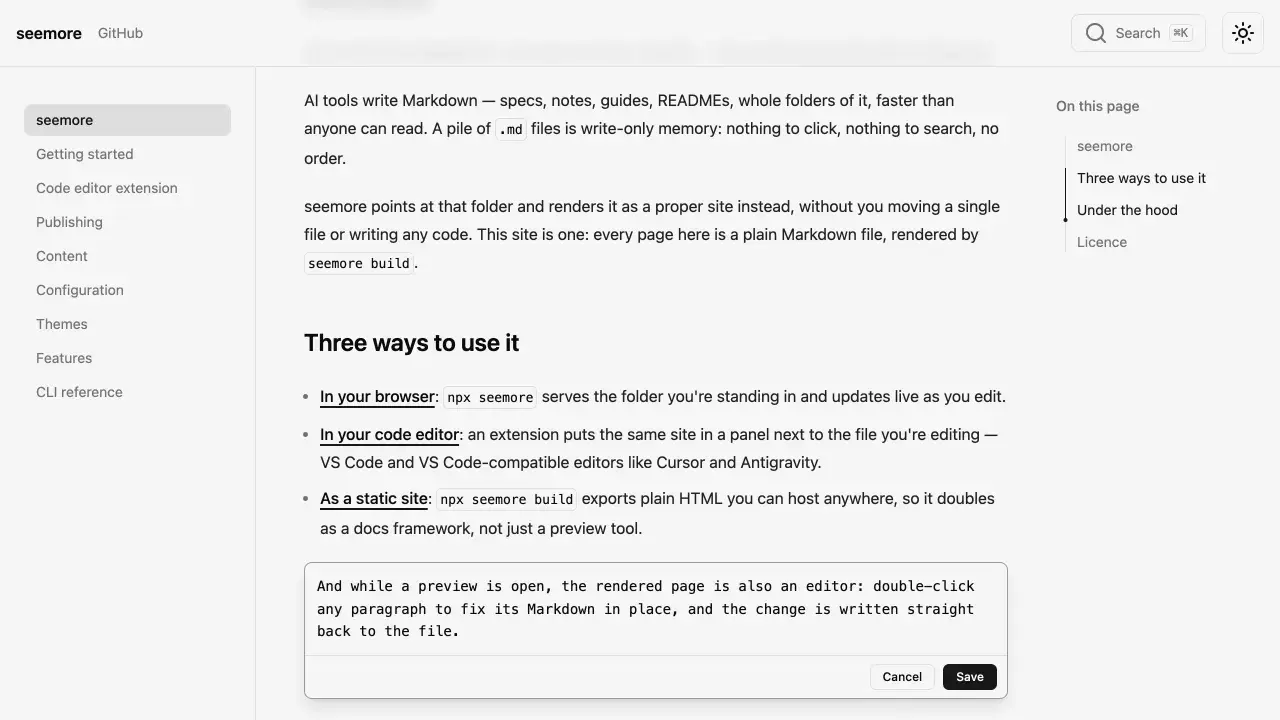
- Double-click any block in the preview.
- Change the Markdown source that opens.
- Click Save.
Save writes the change to the file on disk. Inline editing works only in a local preview. It does not work on a published site. seemore writes to your files only when you save an inline edit or run build or export.
Keep the preview next to your agent
The preview is live. Add, rename, retitle or delete a file, and the site updates at once, with navigation and search. You see pages appear while the agent writes them. Two options keep it next to your work.
Run your agent in the desktop app
Run an AI agent, git or a script in the app's integrated terminal, and the pages update as the files change.
Show the site in your editor
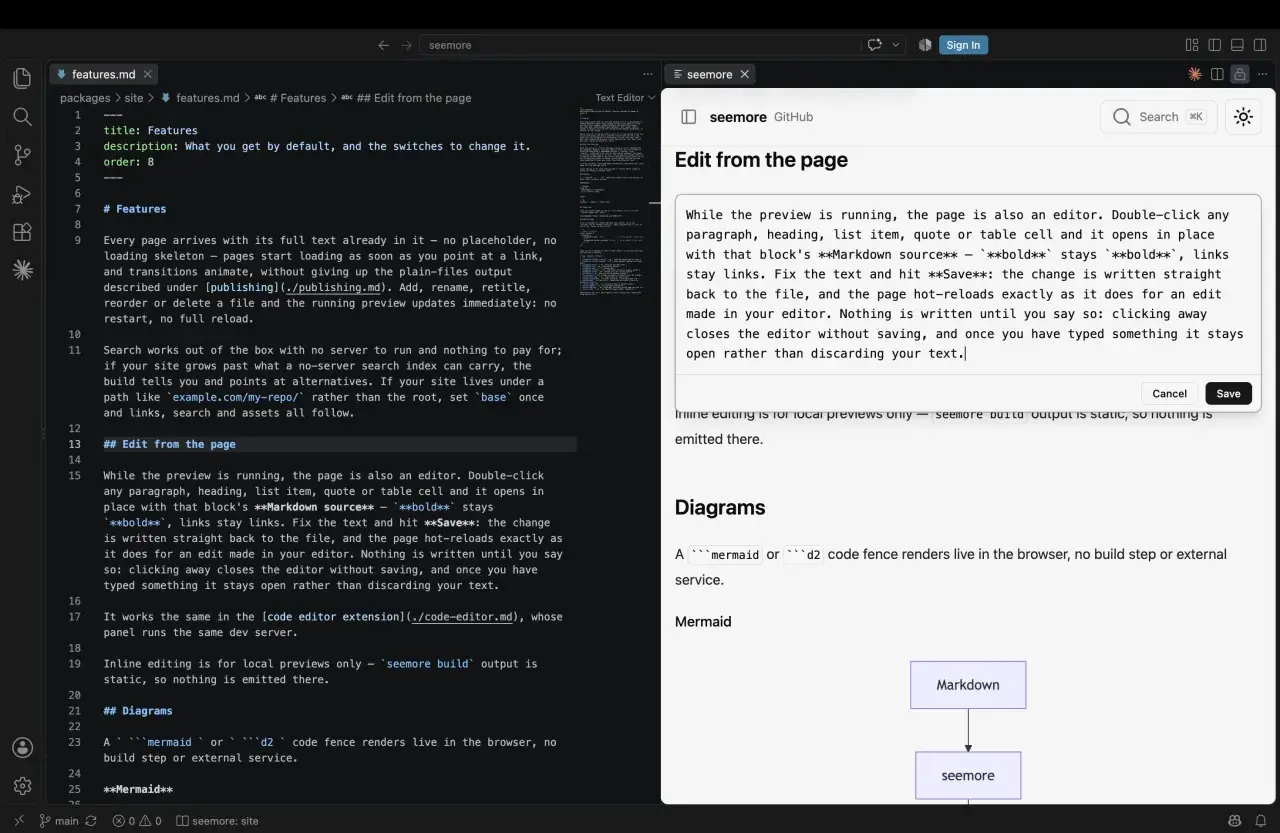
The editor extension shows the site as a panel beside your code. It covers VS Code, Cursor, Antigravity and other VS Code-compatible editors. It needs no extra terminal and no browser tab.
- Install seemore from the VS Code Marketplace or Open VSX.
- Open any Markdown file.
- Click the seemore icon in the editor title bar.
The site opens beside the editor, for the folder of that file. The extension bundles everything it needs, so nothing downloads and nothing goes on your PATH.
Build the site and put it online
Build the folder into plain web files. In the desktop app, choose File > Build Site. In a terminal, run this command.
npx seemore buildThe build writes a dist/ folder. It holds one index.html file per page and a 404.html file. Upload the folder to Netlify, Surge, Cloudflare Pages, GitHub Pages or any web host. A config file is optional.
Set the base path for GitHub Pages
GitHub Pages serves a project at an address such as username.github.io/my-repo/. The part after the host name is a subpath. With the wrong subpath, a page can load with no styling and no working links. Set it once.
- Open or create
seemore.config.tsnext to your content. - Add
base: '/my-repo/'. - Run
npx seemore build.
You can also pass --base /my-repo/ to the build.
Protect the site with a password
Add auth: true to seemore.config.ts. Then set the password when you build.
SEEMORE_PASSWORD='a-long-passphrase' npx seemore buildseemore encrypts the site content, so nobody can read a copy of the build without the password.
Share one page
Use the Actions button above a page. It can copy the page as Markdown or export it as one HTML file. In the desktop app, choose File > Export Page as HTML. In a terminal, run npx seemore export docs/spec.md. It writes spec.html next to the Markdown.
The HTML file is self-contained and opens offline from a double-click.
Things to know
- The desktop app is not signed with an Apple developer certificate, so macOS shows a warning the first time. Windows can show "Windows protected your PC". The download page shows the steps for both.
- Nothing leaves your machine. The preview, the build and the export run locally, with no account and no telemetry.
- Publishing can need an interactive login. In that case, the agent asks you to run one command.
Try it
- Code: github.com/arifszn/seemore
- Docs: arifszn.github.io/seemore. The docs site is itself a folder of Markdown rendered by seemore.
- Desktop app: download page
- Editor extension: VS Code Marketplace
- Agent skill: github.com/arifszn/seemore-skill